vue实现刻度尺时间轴
实现刻度尺时间轴的基本思路
在Vue中实现刻度尺时间轴,通常需要结合HTML5 Canvas或SVG进行绘制。核心逻辑包括计算刻度位置、动态渲染时间标签以及处理用户交互(如拖动、缩放)。以下是具体实现方法:
使用Canvas绘制刻度尺
创建Canvas组件并动态绘制刻度线:
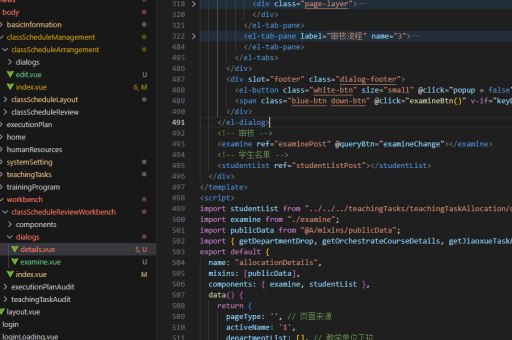
<template>
  <div class="ruler-container">
    <canvas ref="canvas" :width="width" :height="height"></canvas>
  </div>
</template>

<script>
export default {
  props: {
    width: { type: Number, default: 1000 },
    height: { type: Number, default: 60 },
    startTime: { type: Date, default: () => new Date() },
    endTime: { type: Date, required: true }
  },
  mounted() {
    this.drawRuler();
  },
  methods: {
    drawRuler() {
      const canvas = this.$refs.canvas;
      const ctx = canvas.getContext('2d');
      ctx.clearRect(0, 0, this.width, this.height);

      const totalSeconds = (this.endTime - this.startTime) / 1000;
      const pixelsPerSecond = this.width / totalSeconds;

      // 绘制主刻度(小时)
      for (let i = 0; i <= totalSeconds; i += 3600) {
        const x = i * pixelsPerSecond;
        ctx.beginPath();
        ctx.moveTo(x, 0);
        ctx.lineTo(x, 30);
        ctx.stroke();

        // 添加时间标签
        const time = new Date(this.startTime.getTime() + i * 1000);
        ctx.fillText(
          time.toLocaleTimeString([], { hour: '2-digit', minute: '2-digit' }),
          x + 2,
          45
        );
      }

      // 绘制次刻度(分钟)
      ctx.strokeStyle = '#ccc';
      for (let i = 0; i <= totalSeconds; i += 60) {
        const x = i * pixelsPerSecond;
        ctx.beginPath();
        ctx.moveTo(x, 15);
        ctx.lineTo(x, 30);
        ctx.stroke();
      }
    }
  }
};
</script>
实现交互功能
添加拖动和缩放功能需要结合事件处理:

// 在methods中添加
handleWheel(e) {
  e.preventDefault();
  const delta = e.deltaY > 0 ? 0.9 : 1.1;
  this.zoom(delta, e.offsetX);
},

zoom(scaleFactor, mouseX) {
  // 计算新的时间范围
  const timeAtMouse = this.startTime.getTime() +
    (mouseX / this.width) * (this.endTime - this.startTime);

  const newRange = (this.endTime - this.startTime) * scaleFactor;

  this.startTime = new Date(timeAtMouse - (mouseX / this.width) * newRange);
  this.endTime = new Date(this.startTime.getTime() + newRange);

  this.drawRuler();
}
在模板中添加事件监听:
<canvas
  ref="canvas"
  @wheel.prevent="handleWheel"
  @mousedown="startDrag"
  @mousemove="handleDrag"
  @mouseup="endDrag">
</canvas>
使用SVG实现替代方案
如果不需要复杂绘制逻辑,SVG方案更简洁:
<template>
  <svg :width="width" :height="height">
    <!-- 主刻度 -->
    <g v-for="(tick, i) in majorTicks" :key="'major-' + i">
      <line
        :x1="tick.position"
        y1="0"
        :x2="tick.position"
        y2="30"
        stroke="#000"/>
      <text
        :x="tick.position + 5"
        y="45"
        font-size="12">
        {{ tick.label }}
      </text>
    </g>

    <!-- 次刻度 -->
    <line
      v-for="(tick, i) in minorTicks"
      :key="'minor-' + i"
      :x1="tick.position"
      y1="15"
      :x2="tick.position"
      y2="30"
      stroke="#ccc"/>
  </svg>
</template>

<script>
export default {
  computed: {
    majorTicks() {
      // 计算主刻度位置和标签
    },
    minorTicks() {
      // 计算次刻度位置
    }
  }
}
</script>
性能优化建议
- 虚拟渲染:对于超长时间轴,只渲染可视区域内的刻度(类似无限列表优化)
- 防抖处理:缩放和拖动时使用防抖避免频繁重绘
- Web Worker:复杂计算放在Web Worker中执行
- CSS Transform:平移时使用CSS transform而非重绘所有刻度
第三方库推荐
- vis.js:提供成熟的Timeline组件
- d3.js:强大的数据可视化库,适合自定义时间轴
- chronoline.js:专门的时间轴库
以上方案可根据项目需求选择原生实现或集成现有库。