vue实现界面编辑
Vue实现界面编辑的方法
Vue.js提供了多种方式实现界面编辑功能,包括表单绑定、动态组件和第三方库集成。以下是几种常见的方法:
双向数据绑定
使用v-model指令实现表单元素与数据的双向绑定,适用于大多数编辑场景:
<template>
  <input v-model="editText" placeholder="编辑内容">
</template>

<script>
export default {
  data() {
    return {
      editText: ''
    }
  }
}
</script>
富文本编辑器集成 对于复杂的内容编辑,可以集成第三方富文本编辑器如Quill或TinyMCE:
<template>
  <div id="editor"></div>
</template>

<script>
import Quill from 'quill'
import 'quill/dist/quill.snow.css'

export default {
  mounted() {
    this.quill = new Quill('#editor', {
      theme: 'snow'
    })
  }
}
</script>
表格编辑 使用Element UI或Ant Design Vue等UI库实现可编辑表格:
<template>
  <el-table :data="tableData" style="width: 100%">
    <el-table-column prop="date" label="日期">
      <template #default="scope">
        <el-input v-model="scope.row.date"></el-input>
      </template>
    </el-table-column>
  </el-table>
</template>
自定义组件编辑 创建可复用的编辑组件,通过props接收数据和事件发射:
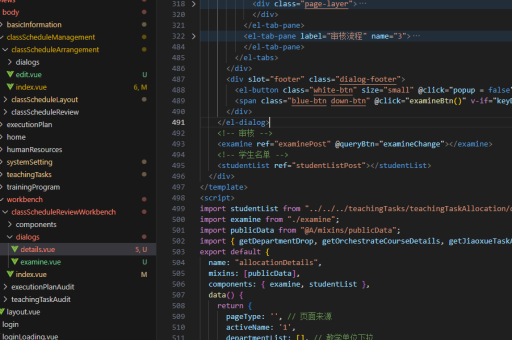
<template>
  <div>
    <custom-editor :value="content" @update="handleUpdate"/>
  </div>
</template>

<script>
import CustomEditor from './CustomEditor.vue'

export default {
  components: { CustomEditor },
  data() {
    return {
      content: '初始内容'
    }
  },
  methods: {
    handleUpdate(newValue) {
      this.content = newValue
    }
  }
}
</script>
状态管理方案
对于复杂编辑场景,建议使用Vuex或Pinia管理编辑状态:
// store.js (Pinia示例)
import { defineStore } from 'pinia'

export const useEditorStore = defineStore('editor', {
  state: () => ({
    content: '',
    isEditing: false
  }),
  actions: {
    updateContent(newContent) {
      this.content = newContent
    }
  }
})
性能优化技巧
大型编辑界面可采用虚拟滚动减少DOM节点:
<template>
  <RecycleScroller
    :items="largeDataSet"
    :item-size="50"
    key-field="id"
    v-slot="{ item }"
  >
    <div class="edit-item">
      <input v-model="item.text">
    </div>
  </RecycleScroller>
</template>
撤销/重做功能实现
利用命令模式实现编辑历史记录:
class CommandManager {
  constructor() {
    this.history = []
    this.index = -1
  }

  execute(command) {
    command.execute()
    this.history = this.history.slice(0, this.index + 1)
    this.history.push(command)
    this.index++
  }

  undo() {
    if (this.index >= 0) {
      this.history[this.index].undo()
      this.index--
    }
  }
}
以上方法可根据具体需求组合使用,构建功能完善的界面编辑系统。