vue编辑功能怎么实现
Vue 编辑功能的实现方法
1. 数据绑定与表单处理
使用 v-model 实现双向数据绑定,将表单输入与 Vue 实例的数据属性关联。例如:
<template>
  <input v-model="editData.name" placeholder="请输入名称">
</template>

<script>
export default {
  data() {
    return {
      editData: {
        name: ''
      }
    }
  }
}
</script>
2. 编辑状态管理
通过一个布尔值控制编辑状态的切换,配合 v-if 或 v-show 显示不同界面:
data() {
  return {
    isEditing: false,
    originalData: {},
    tempData: {}
  }
},
methods: {
  startEditing(item) {
    this.isEditing = true
    this.originalData = item
    this.tempData = {...item}
  }
}
3. 表单验证
可以结合 Vue 的 computed 属性或第三方库如 VeeValidate 进行验证:

computed: {
  isFormValid() {
    return this.tempData.name && this.tempData.name.length > 0
  }
}
4. 提交与取消操作
实现保存和取消编辑的方法:
methods: {
  saveEdit() {
    Object.assign(this.originalData, this.tempData)
    this.cancelEdit()
    // 这里可以添加API调用
  },
  cancelEdit() {
    this.isEditing = false
    this.tempData = {}
  }
}
5. 列表项编辑(可选)
对于列表中的编辑功能,通常需要跟踪当前编辑的项:
data() {
  return {
    items: [...],
    editingId: null
  }
},
methods: {
  editItem(id) {
    this.editingId = id
  }
}
6. 使用组件化(高级)
对于复杂编辑场景,可以创建可复用的编辑组件:
<template>
  <edit-dialog
    :visible="isEditing"
    :data="tempData"
    @save="saveEdit"
    @cancel="cancelEdit"
  />
</template>
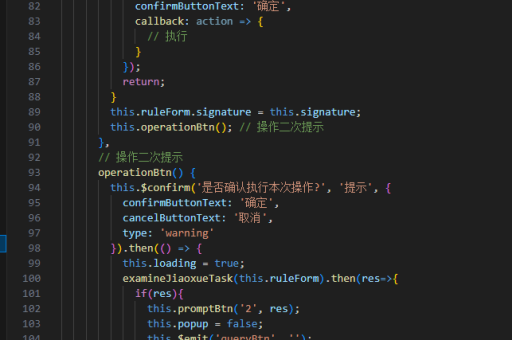
7. 与后端交互
在保存方法中添加 API 调用:
async saveEdit() {
  try {
    const response = await axios.put('/api/items/' + this.originalData.id, this.tempData)
    Object.assign(this.originalData, response.data)
    this.isEditing = false
  } catch (error) {
    console.error('保存失败', error)
  }
}
注意事项
- 对于复杂表单,考虑使用 Vuex 管理状态
- 深拷贝原始数据避免直接修改
- 添加加载状态和错误处理
- 移动端考虑使用更适合的输入组件