vue实现梯形
在Vue中实现梯形效果,可以通过CSS的clip-path、transform或border属性结合Vue的动态样式绑定来实现。以下是几种常见方法:
使用CSS clip-path属性
通过clip-path直接裁剪元素为梯形,结合Vue的动态绑定控制样式:
<template>
  <div class="trapezoid" :style="trapezoidStyle"></div>
</template>

<script>
export default {
  data() {
    return {
      width: 200,
      height: 100,
      skewAngle: 20
    };
  },
  computed: {
    trapezoidStyle() {
      return {
        width: `${this.width}px`,
        height: `${this.height}px`,
        clipPath: `polygon(0 0, 100% ${this.skewAngle}%, 100% 100%, 0 ${100 - this.skewAngle}%)`
      };
    }
  }
};
</script>

<style>
.trapezoid {
  background: linear-gradient(45deg, #ff8a00, #e52e71);
}
</style>
使用CSS transform属性
通过transform: skew()实现倾斜效果,注意需要嵌套容器以避免内容变形:
<template>
  <div class="trapezoid-outer">
    <div class="trapezoid-inner" :style="{ transform: `skewX(${angle}deg)` }">
      <!-- 内容区域 -->
    </div>
  </div>
</template>

<style>
.trapezoid-outer {
  overflow: hidden;
  width: 200px;
  height: 100px;
}
.trapezoid-inner {
  width: 100%;
  height: 100%;
  background: #42b983;
  transform-origin: bottom left;
}
</style>
使用CSS border技巧
通过透明边框和宽度调整实现梯形(适合单色背景):
<template>
  <div class="trapezoid-border" :style="{
    borderBottomWidth: `${height}px`,
    borderLeftWidth: `${width/2}px`,
    borderRightWidth: `${width/2}px`
  }"></div>
</template>

<style>
.trapezoid-border {
  width: 0;
  height: 0;
  border-left: 100px solid transparent;
  border-right: 100px solid transparent;
  border-bottom: 60px solid #3498db;
}
</style>
动态控制梯形参数
结合Vue的响应式特性,通过滑块动态调整梯形参数:
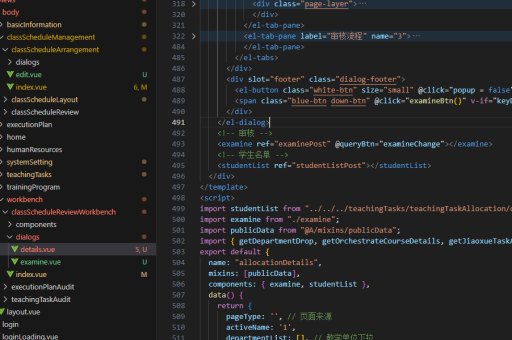
<template>
  <div>
    <input type="range" v-model="skewValue" min="0" max="50">
    <div class="dynamic-trapezoid" :style="{
      clipPath: `polygon(0 0, 100% ${skewValue}%, 100% 100%, 0 ${100 - skewValue}%)`
    }"></div>
  </div>
</template>

<script>
export default {
  data() {
    return {
      skewValue: 20
    };
  }
};
</script>
注意事项
clip-path的兼容性较好,但旧版本浏览器需要-webkit-前缀- 梯形内的文本内容可能需要额外处理以避免扭曲
- 使用
transform: skew()时建议嵌套两层容器,外层控制尺寸,内层实现变形
以上方法均可根据项目需求选择,动态样式绑定是Vue场景下的推荐实现方式。